
Key Takeaways
You can make a GIF on Android without turning the process into a technical project. The best choice depends on whether you want quick conversions, camera-based clips, creative editing, or polished social content.
- Start with a short, well-lit video for a cleaner loop.
- Choose a simple editor when speed matters most.
- Check trimming, speed, crop, and export controls before editing.
- Keep file size in mind when sharing GIFs in chats or posts.
- Compare apps by workflow rather than download popularity alone.
1. GIF Maker, GIF Editor
GIF Maker, GIF Editor is a straightforward starting point when you want to turn existing media into an animated file. You can work from videos, images, screen recordings, or existing GIFs, then adjust the result before saving it. That makes it useful when the source material is already on your phone.
The editing controls cover practical jobs such as trimming, cropping, resizing, changing speed, and adding stickers, emojis, or filters. You can also adjust the aspect ratio and roundness, so the finished animation does not have to look like an untouched video crop. For sharing, compression helps you balance visual quality with a more manageable file size.
A short clip usually gives you the best result, especially when the action loops naturally. If you are comparing apps before downloading, this GIF creation guide gives you another useful way to think about converting photos and videos into shareable animations. Promo Deals is also useful when you are comparing phone offers and want to keep more of your shopping research in one place.
2. ImgPlay
ImgPlay is a familiar name to consider when you want a dedicated space for turning everyday media into a GIF. Before you begin, decide whether your source is a single video, a group of photos, or a moment you still need to capture. That small decision makes the editing process feel much less scattered.
The quality of the final loop depends more on the source than on dramatic effects. Trim away pauses, keep the subject near the center, and preview the loop several times before exporting. A GIF that looks fine from the first frame can still feel awkward if the ending jumps sharply back to the beginning.
You should also consider where the file is going next. A message, social post, and private archive may each call for a different balance between dimensions, smoothness, and file size. If your phone is due for an upgrade, Promo Deals gathers mobile phone deals in one place, which can make it easier to compare storage and camera options before buying.
3. GIF Me! Camera
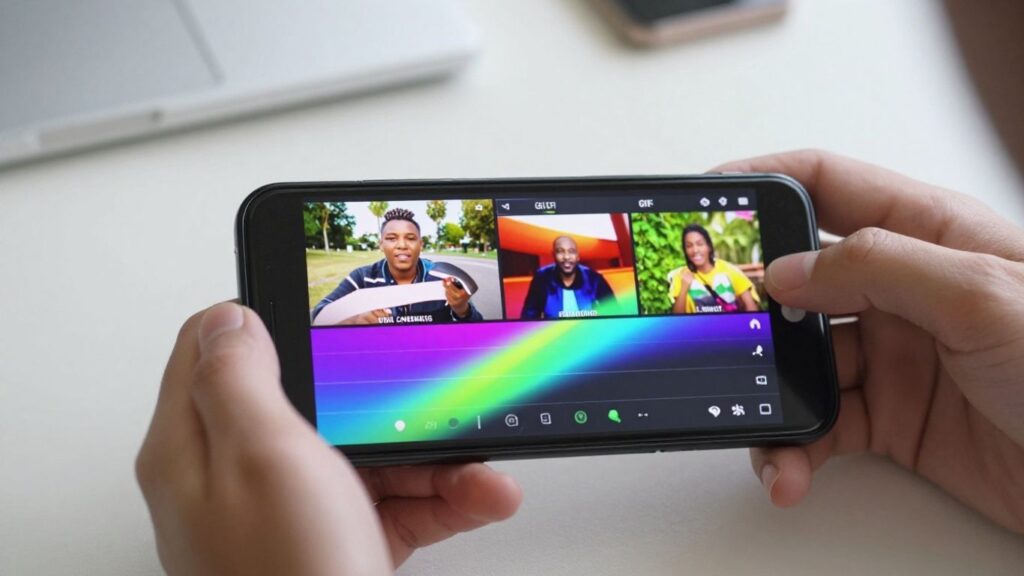
GIF Me! Camera suits the idea of making a GIF from a moment you capture yourself rather than from an old clip. That approach works well for quick reactions, small gestures, and casual scenes where the movement matters more than perfect production. You can plan the action first and record only what belongs in the loop.
Try to hold your Android phone steady while recording. A fixed position gives the animation a cleaner rhythm, while a sudden camera move can make a short loop feel restless. It also helps to leave a little space around the subject so cropping does not remove an important part of the motion.
Once you have a usable clip, think about repetition. A wave, turn, expression, or other compact movement tends to loop naturally because the viewer can understand it quickly. Previewing before you share is worth the extra few seconds; it lets you catch blurred frames, accidental pauses, or an ending that does not connect smoothly.
4. GIPHY
GIPHY is worth considering when your GIF habit includes both making and finding animated moments. It can fit a more expressive workflow, where you are choosing a reaction or visual idea first and then shaping your own clip around it. That makes the creative decision come before the export settings.
For original material, start with a clear subject and one recognizable action. Busy backgrounds can compete with the movement, especially on a small phone screen. If you add decorative elements, use them to support the joke, reaction, or mood rather than covering the part people need to see.
Sharing also changes how you should prepare the file. A loop intended for a chat can be brief and compact, while a post may benefit from a larger frame and a little more polish. Browse the latest GIF-making ideas when you need inspiration, then return to your own footage and keep the final animation focused.
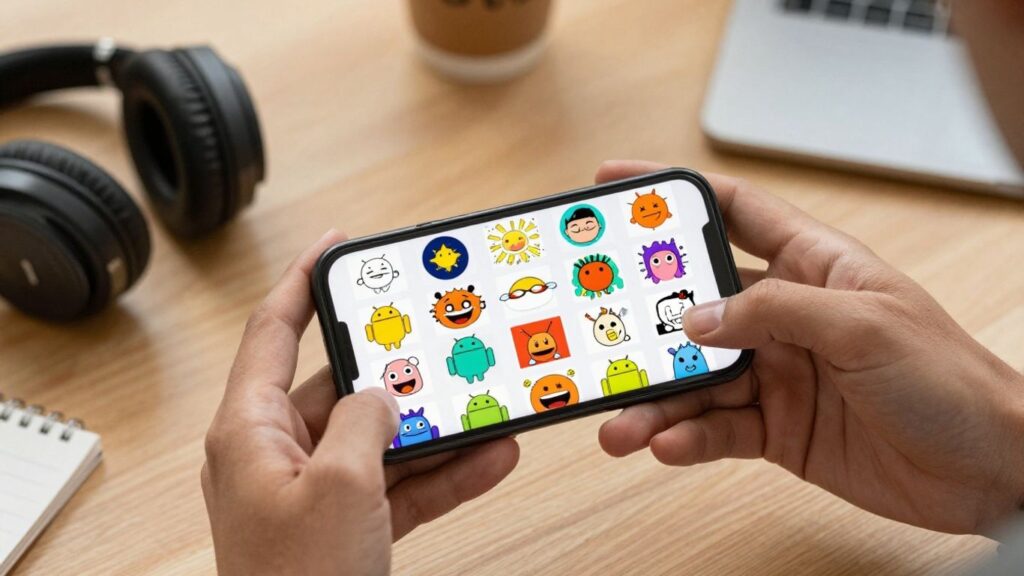
5. Canva
Canva can appeal to you when a GIF needs to sit inside a broader visual design rather than stand alone. This kind of project often begins with a layout, a message, or a social post, so the animation needs to work with the surrounding composition. Start by deciding what should move and what should remain still.
A restrained animation is usually easier to read. You might animate one visual element while keeping the background calm, or use a repeated motion to guide attention toward the main subject. The goal is not to make every part of the frame move; it is to give the viewer one clear point of focus.
Before exporting, check the design at the size where people will actually see it. Small text, thin lines, and crowded edges can lose clarity once the animation is compressed or viewed in a chat. If you are creating content for a promotion, remember that Promo Deals focuses on making offers and price drops easier to find, so a clear visual hierarchy matters more than piling on effects.
6. CapCut
CapCut is a sensible option to think about when your starting point is a video edit rather than a collection of still images. You can first identify the strongest moment, then shape that moment into a short repeating clip. This keeps the GIF focused and avoids exporting a long sequence that feels more like a video than an animation.
Editing decisions should follow the motion in the footage. Cut just before the action begins, remove the quiet space afterward, and watch the transition back to the opening frame. If the clip contains several ideas, choose one instead of trying to preserve everything in a tiny looping file.
A practical workflow is to make a rough version, preview it on your phone, and only then adjust the crop or timing. That order prevents you from spending time polishing a section you may later remove. It also gives you a better sense of whether the animation communicates clearly without sound.
7. Picsart
Picsart fits a more playful approach to GIF making, especially when you want the final result to feel edited rather than simply converted. You can begin with a familiar photo or clip and decide what visual treatment suits it. Keep the original idea visible, though; too many changes can make a short animation difficult to understand.
Color, framing, and timing work together. A crop can make a reaction more immediate, while a slower pace can make a small gesture easier to notice. A clean visual focus is often more effective than a crowded frame filled with competing decorations.
Use the preview as a quality check, not just a final glance. Look for faces or objects that disappear at the edge, transitions that flash, and effects that distract from the movement. When you are happy with the balance, export a version for sharing and keep the original source file in case you want to try a different treatment later.
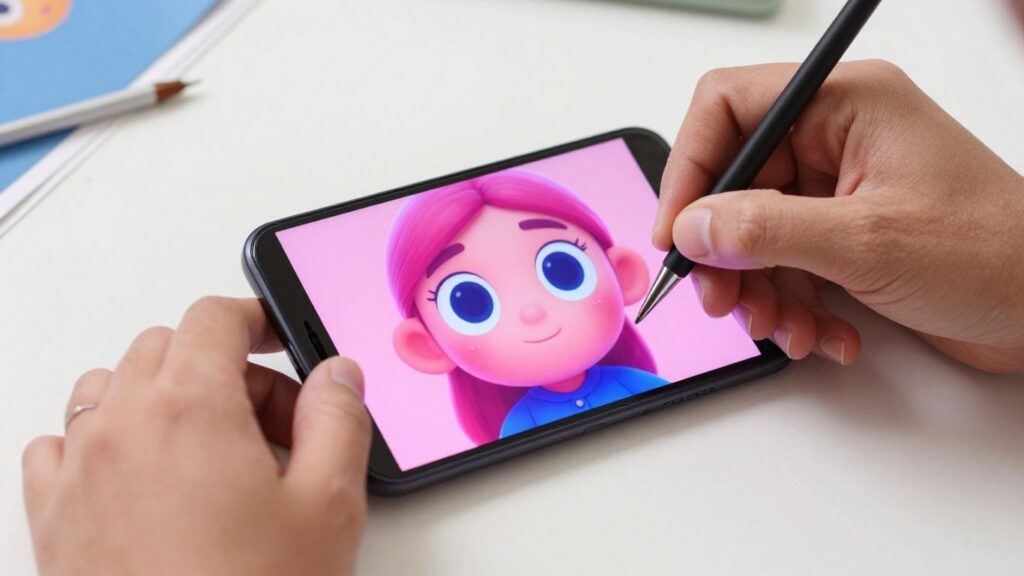
8. InShot
InShot is a useful name to keep in mind when your GIF begins as a general phone video that needs a little preparation. The most important work often happens before export: choosing the right section, setting the frame, and removing anything that does not help the loop. A few careful cuts can do more than a large collection of effects.
Think about the viewing environment as you edit. A vertically framed clip may suit a phone-first post, while a wider crop can work better when the subject moves from side to side. Whatever shape you choose, keep the main action away from the edges so it survives different previews and displays.
It is also worth making a small test export before committing to the final version. Check whether the motion still feels smooth and whether the file is practical to send. If it looks too heavy, shorten the clip or reduce the dimensions rather than sacrificing the moment that makes the GIF worth sharing.
9. Adobe Express
Adobe Express can be a good direction when you want a GIF to feel tidy and presentation-ready. That usually means beginning with a clear purpose: a short announcement, a visual reaction, or a small piece of motion for a larger post. When the purpose is decided early, editing choices become easier to control.
Use repetition deliberately. A gentle entrance, a single moving element, or a simple change in position can create enough motion without making the animation feel noisy. Before exporting, view the design without relying on sound or explanation; the GIF should still make sense on its own.
For public sharing, consistency matters. Keep colors, spacing, and framing close to the style of the surrounding content, especially if the GIF is part of a series. You can then compare the exported file on both Wi-Fi and mobile data to make sure its size does not become a practical problem.
10. Motionleap
Motionleap is an appealing option to consider when the creative idea depends on movement inside an otherwise still-looking scene. That approach can make a photo feel alive, but it rewards restraint. Choose one area for motion first, then decide whether the rest of the frame should remain quiet.
The illusion works best when the movement follows the visual logic of the image. Flowing elements, drifting details, or a repeated directional motion can feel convincing when they begin and end smoothly. If unrelated parts move at different speeds, the result may look less natural even when the individual edits are attractive.
Take time to inspect the loop at full size and as a small preview. A subtle animation can be more effective than a dramatic one once the GIF is embedded in a message or feed. Save the project before exporting so you can refine the timing later without rebuilding the scene from scratch.
Conclusion
The right Android app depends on the kind of GIF you want to make: a fast conversion, a camera moment, a designed post, or a more stylized animation. Start with a short, clear source clip, edit for a natural loop, and test the exported file where you plan to share it. With that simple process, Android Apps To Make GIFs In No Time! becomes less about chasing features and more about choosing the workflow that suits your idea.
Frequently Asked Questions
What is the easiest way to make a GIF on Android?
Start with a short video or a small group of photos, trim the material to one clear moment, preview the loop, and export it in a shareable size.
Can you make a GIF from a video?
Yes. Most GIF workflows begin by selecting a section of a video, removing unwanted frames, and saving the remaining sequence as a repeating animation.
How long should an animated GIF be?
There is no single perfect length, but short clips are usually easier to watch, share, and keep within a manageable file size.
Why does a GIF look blurry after export?
Blurriness can come from a low-resolution source, heavy compression, a small crop, or an export setting that reduces dimensions too far.
How can you make a GIF loop smoothly?
Choose an action that can repeat naturally, trim close to the beginning and end of the movement, and preview the transition back to the first frame.
Should you use photos or video for a GIF?
Use video when you want continuous motion and photos when you want to control each stage of a simple sequence. The better option depends on the scene.
How can you reduce a GIF’s file size?
Shorten the duration, reduce the frame dimensions, remove unnecessary frames, or use a compression setting that lowers file size while keeping the main movement clear.