

Key Takeaways
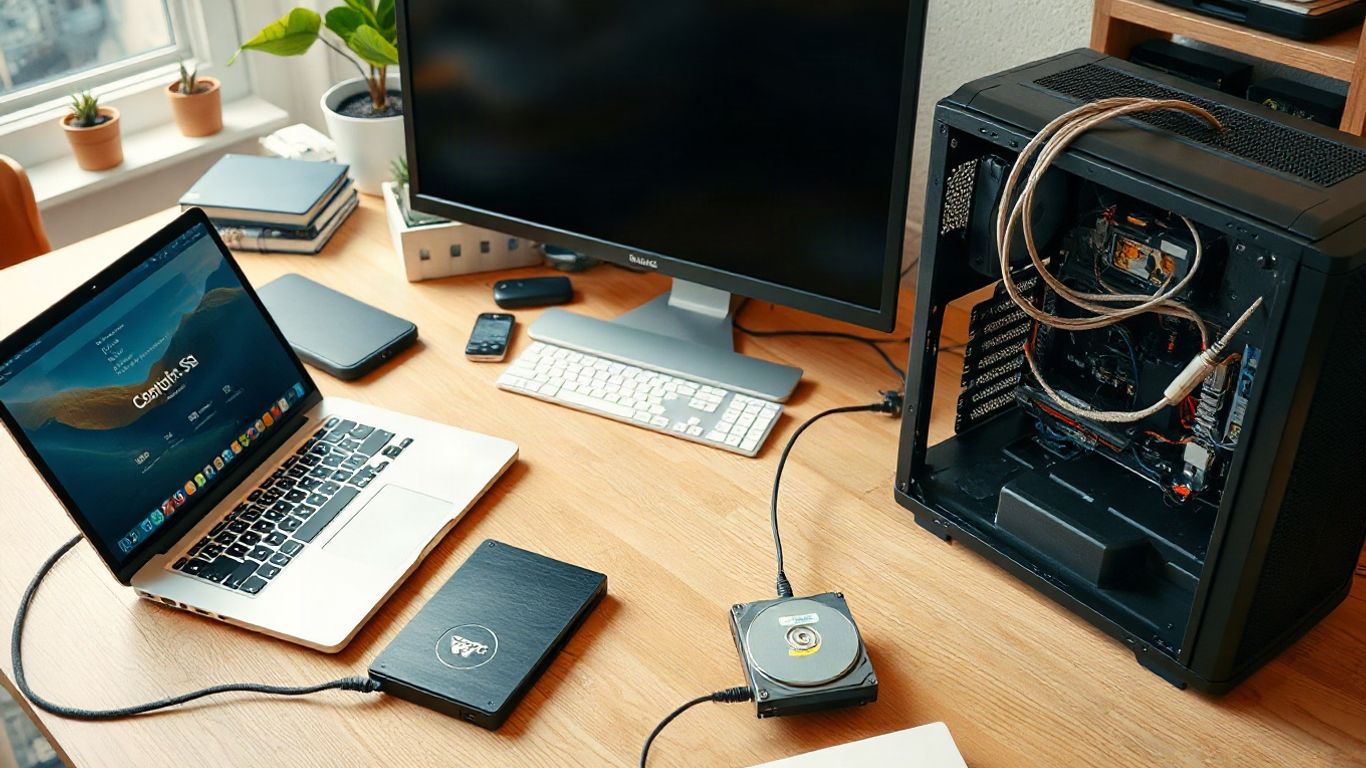
An SSD can make an older computer feel much more responsive without changing every component. The right choice depends on your device, storage needs, connection type, and budget.
- An SSD stores data on flash memory rather than spinning platters.
- Faster access can shorten startup, loading, and file-transfer waits.
- SSDs are quieter and generally more resistant to movement than HDDs.
- SATA, NVMe, and M.2 describe different connection or form-factor choices.
- Checking compatibility and capacity matters as much as headline speed.
What Exactly is an SSD (Solid State Drive)?
An SSD, or solid-state drive, is a storage device that saves your operating system, applications, and personal files. Unlike a traditional hard disk drive, it has no spinning platter or moving read/write head. That simpler physical design helps your computer retrieve data with less mechanical delay. If you are comparing storage before a purchase, this SSD buying guide offers useful background on the underlying technology.
The Technology Behind SSDs: Flash Memory Explained
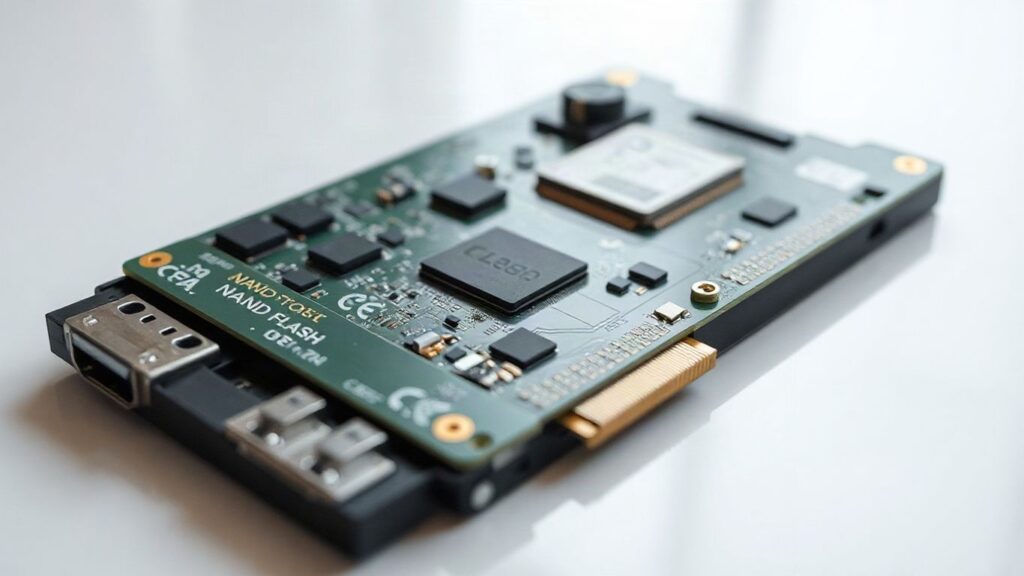
An SSD uses NAND flash memory, a type of non-volatile memory that keeps data available even when the computer is turned off. Data is stored in memory cells and accessed electronically, so the drive does not need to move a physical head across a platter. Different cell designs can balance cost, capacity, endurance, and speed, which is why SSDs with similar capacities may still perform differently.
The drive also includes a controller and firmware that manage how data is written, read, and organized. You do not need to understand every controller detail to choose well, but it helps to remember that advertised speed is only part of the experience. Your computer’s connection, workload, available space, and thermals also shape real-world performance.
Why Your Computer Needs an SSD: The Performance Boost
Replacing a hard drive with an SSD can change the moments you notice most: pressing the power button, opening a large application, or switching between several tasks. The improvement is not magic; it comes from lower access latency and quicker data retrieval. You may still be limited by your processor, memory, or internet connection, but storage-heavy tasks often feel much less hesitant.
Faster Boot Times: Say Goodbye to Waiting
When your operating system starts, it reads many small files from storage. An SSD can handle those scattered requests more quickly than a mechanical drive, reducing the pause between pressing the power button and reaching your desktop. The exact time varies with the operating system and other hardware, but the change is easy to notice on a machine that previously relied on a heavily used hard drive.
That faster start also changes small habits. You may be less likely to leave the computer running simply to avoid another long startup, and restarting after an update becomes less frustrating. Small waits add up, especially when you work or study in short sessions.
Quicker Application Loading and File Transfers
Programs that read many files during launch can open more promptly from an SSD. The same applies to projects with lots of assets, folders containing many small documents, and everyday file operations. Large sequential transfers also depend on the drive interface and the source or destination device, so an SSD is not automatically limited only by its advertised maximum.
For a practical shopping decision, compare capacity and connection type alongside speed. A drive that fits your budget but leaves too little free space may become inconvenient, while a slightly slower model with comfortable capacity can be the better everyday choice. Promo Deals gathers discounts and price drops in one place, which can make it easier to watch for a suitable storage upgrade rather than buying the first option you see.
Improved Responsiveness for Gaming and Multitasking
An SSD does not replace a capable graphics card or processor, and it does not guarantee a higher frame rate. Its contribution is mainly felt in loading screens, game installation, level transitions, and the general speed of launching several programs. When you move between a browser, an editor, and other applications, the system can feel more willing to respond when storage is not holding up the queue.
Before upgrading, identify what actually feels slow. A computer that freezes because it lacks memory needs a different fix, while long launches and persistent disk activity point more directly toward storage. For a quick diagnosis, watch whether the drive stays near full use while the processor remains relatively relaxed; that pattern can help you decide whether an SSD is likely to make a meaningful difference.
SSD vs. HDD: A Clear Comparison
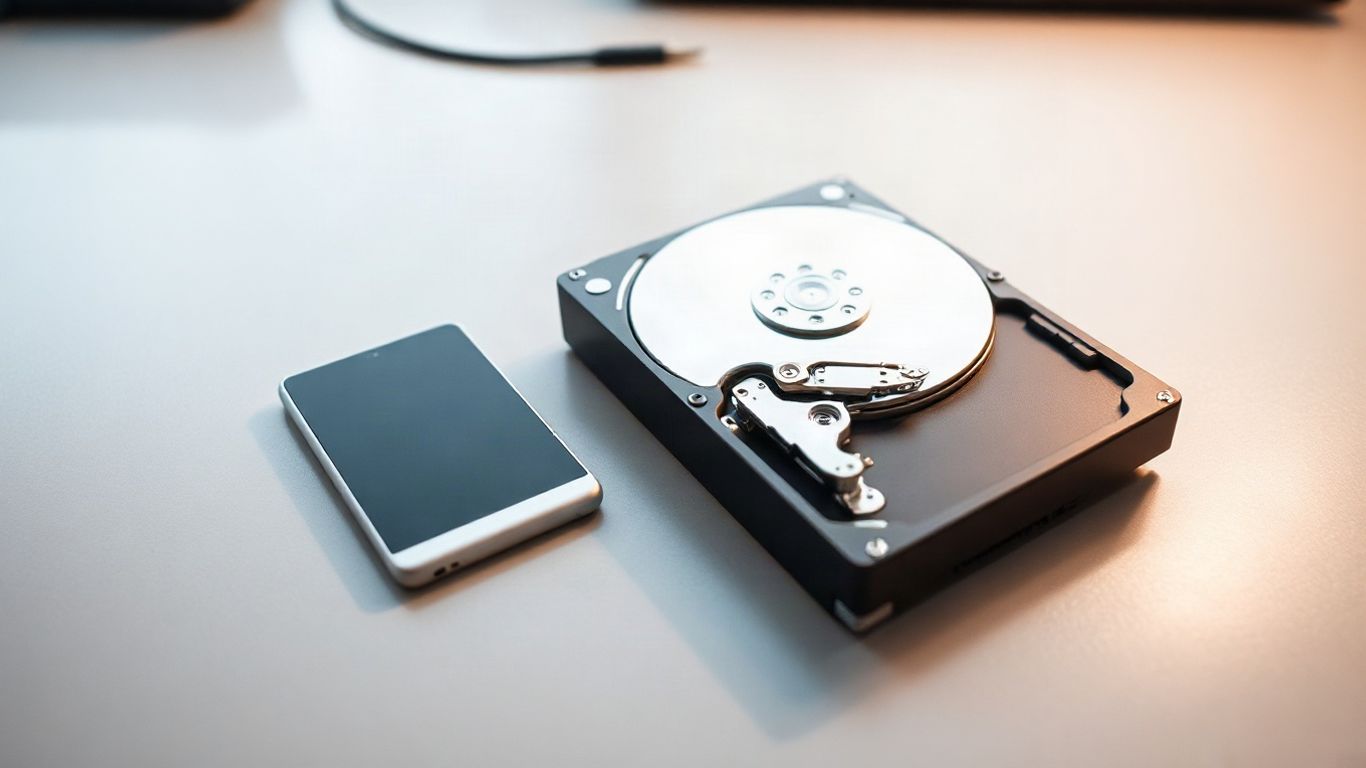
SSDs and HDDs both provide persistent storage, but they take different approaches. An HDD records data on rotating magnetic platters, while an SSD stores it electronically in flash memory. That distinction affects responsiveness, noise, movement tolerance, and often power use, although the best choice still depends on capacity and price.
A comparison is most useful when you match it to your routine. Someone carrying a laptop daily may value resistance to bumps, while someone archiving large collections may focus on capacity per dollar. You can also use different storage types for different jobs rather than treating the decision as all or nothing.
Durability and Reliability: No Moving Parts
Because an SSD has no spinning platters or moving read/write head, it avoids the mechanical parts that can be affected by vibration or physical movement. That makes it a practical fit for laptops and other devices that travel. It does not make your data invulnerable, however: flash cells have finite write endurance, electronics can fail, and accidental deletion remains possible.
Backups still matter. Keep another copy of files you cannot replace, whether that means a separate drive, network storage, or a dependable cloud service. Storage reliability is about reducing risks, not eliminating them, so a backup plan remains useful even after an SSD upgrade.
Power Efficiency and Noise Levels
An SSD operates silently because it does not spin a platter or move a mechanical arm. It can also use less power in some workloads, which may help a laptop spend more time away from an outlet, though the result depends on the specific drive and the rest of the system. These qualities are especially noticeable in quiet rooms and portable computers.
An HDD can still be sensible when you need substantial capacity for a lower upfront cost and the drive will remain in a stationary desktop or backup enclosure. Think about how often you access the data, how quickly you need it, and whether the drive will be moved. Those practical questions are more useful than treating one storage type as universally best.
Choosing the Right SSD for Your Needs
Choosing an SSD begins with compatibility, not the biggest number on a product page. Check the device manual or motherboard specifications, then confirm the supported interface, physical size, and available slot. Capacity should reflect your operating system, applications, games, media, and some breathing room for future files.
It also helps to compare ownership details rather than only the purchase price. Warranty terms, included software, thermal requirements, and return policies can all affect the value of an upgrade. Promo Deals can help you find relevant electronics offers, while this practical product comparison guide is a useful reminder to start with the problem you need the purchase to solve.
Types of SSDs: SATA, NVMe, and M.2
SATA SSDs use the SATA interface and are common in 2.5-inch designs, making them a straightforward option for many older desktops and laptops. NVMe drives communicate through PCI Express and are designed for higher bandwidth and lower latency. M.2 describes a compact physical form factor, not one single speed standard; an M.2 drive may use SATA or NVMe, so you must check both the slot and its supported protocol.
This quick comparison can keep the terminology from becoming confusing:
| Type or term | What it describes | What to check |
|---|---|---|
| SATA SSD | A drive using the SATA interface | SATA connector and bay or cable |
| NVMe SSD | A drive using the NVMe protocol over PCI Express | PCIe generation, lanes, and system support |
| M.2 SSD | A compact card-shaped form factor | Keying, length, and SATA or NVMe compatibility |
The table shows why “M.2” alone is not enough information. Match the drive to your computer’s actual slot, and do not assume that a compact shape guarantees NVMe performance. When a deal looks unusually attractive, checking these specifications first can prevent an incompatible purchase.
Upgrading to an SSD: Is It Worth It?
For many computers that still meet your everyday needs, an SSD upgrade is one of the most noticeable changes you can make. Startup, application launches, and general file access may feel faster without replacing the processor or reinstalling every component. The upgrade is especially appealing when your current hard drive is slow, noisy, nearly full, or showing signs of wear.
Before buying, confirm whether your computer supports a 2.5-inch SATA drive, an M.2 drive, or another format. Plan how you will move the operating system and files, and create a backup before beginning. If the device is very old or limited by low memory and a weak processor, the SSD can still improve storage access, but it may not solve every performance complaint.
The final decision comes down to the value of smoother daily use versus the cost and effort of installation. Promo Deals is designed to bring offers, discounts, and price drops together, so you can compare timing and pricing instead of rushing into an upgrade. Choose enough capacity for your routine, verify compatibility, and treat the SSD as part of a broader maintenance plan rather than a substitute for backups.
Conclusion
An SSD gives your computer a faster, quieter path to the files and applications you use every day. Once you check compatibility, choose sensible capacity, and keep a backup, the upgrade can be a practical way to make an aging system feel more comfortable without replacing everything.
Frequently Asked Questions
What does SSD stand for?
SSD stands for solid-state drive. It is a storage device that uses flash memory rather than spinning magnetic platters and mechanical read/write heads.
Is an SSD faster than an HDD?
An SSD is generally faster for startup, application loading, and many file-access tasks because it retrieves data electronically and has lower access latency.
Does an SSD improve gaming performance?
An SSD can shorten game loading and installation times, but it usually does not directly increase frame rates. Graphics performance depends mainly on components such as the GPU, CPU, and memory.
How much SSD storage do you need?
The right capacity depends on your operating system, applications, games, media, and future needs. Leave free space available rather than filling the drive completely.
Are M.2 and NVMe the same thing?
No. M.2 describes a physical form factor, while NVMe describes a storage protocol. An M.2 drive can use NVMe or, in some systems, SATA.
Do SSDs need maintenance?
SSDs need normal file management, firmware support when appropriate, and reliable backups. Avoiding unnecessary full capacity can also help preserve a comfortable everyday experience.
Can you replace an HDD with an SSD?
Often, yes, but you must confirm the computer’s supported drive size, interface, and connection. You should also back up your files and plan how to transfer or reinstall the operating system.